December
27
November
25
Password Not Synced to the on-premises Active directory When Office 365 Admins reset a user’s password
Here is the link from Microsoft https://support.microsoft.com/en-ca/help/3187256/password-isn-t-synced-from-azure-ad-to-the-local-on-premises-directory
Scenarios allow password writeback. The following table lists scenarios in which password writeback occurs and doesn’t occur.
| Scenario | Password writeback |
|---|---|
| Users who perform self-service password reset through https://passwordreset.microsoftonline.com | Yes |
| Admins who perform self-service password reset through https://passwordreset.microsoftonline.com | Yes |
| Password change in My Apps or in Office 365 portal | Yes |
| Admins who perform password resets by using the Azure Management Portal | Yes |
| Admins who perform password resets by using the Microsoft 365 admin center | No |
| Passwords at new user creation through Azure Management Portal, Microsoft 365 admin center, or Azure AD PowerShell Module | No |
| Admins who use the Set-MsolUserPassword cmdlet by using the Azure AD PowerShell Module | No |
November
12
How to Fix GPO Sysvol Permissions Error
Problems:
In a multi domain controllers Forest, some of the domain controllers have the following error
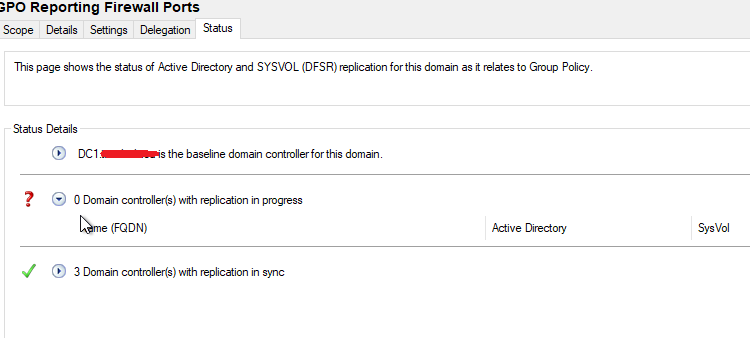
The SYSVOL permissions of one or more GPO’s on this domain controller are not in sync with the permissions for the GPO’s on the Baseline domain controller.
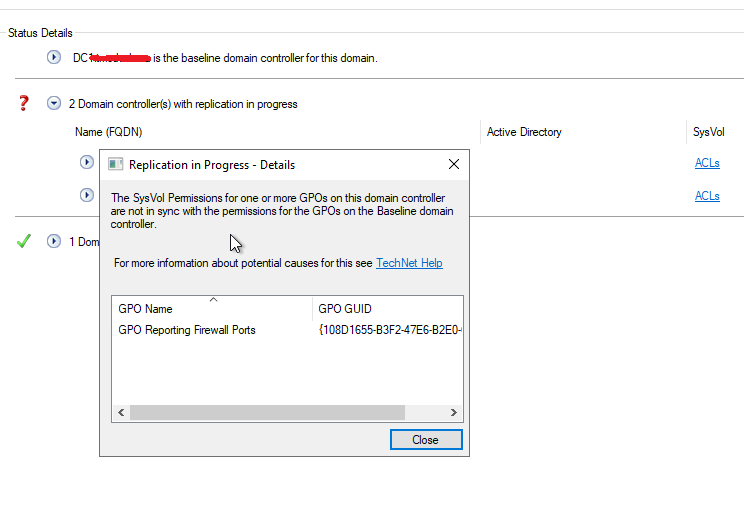
The Cause:
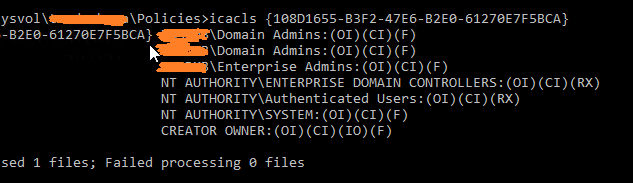
Domain controllers create two Domain Admin accounts with permissions on the GPOs. You can not see them in the GUI but running icacls {GPO UID}, you can see two Domain Admin accounts.
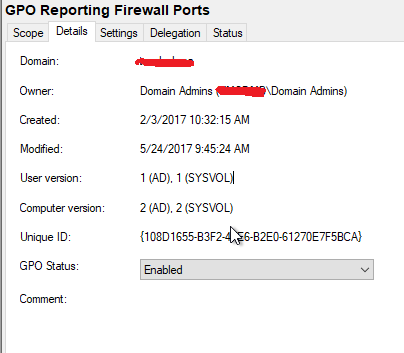
In GUI, you only see one Domain Admins account
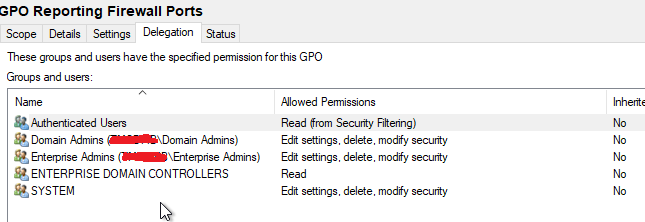
Run CMD in elevated mode, you can see there are two main admins account
icacls “{GPO UID}”
The Solutions
First, remove both domain admin account
icacls “{GPO UID}” /remove:g “<localdomain>\Domain Admins”

Second, add a single Domain Admin account back to the GPO
icacls “{GPO UID}” /grant “<localdomain>\Domain Admins”:(OI)(CI)(F)

Third, do the same on the other affected Domain controllers.
Finally, wait or manually forced replication again with these two commands
repadmin /syncall
repadmin /syncall /AdePq
October
29
Force Sync Azure AD Connect Using PowerShell
October
11
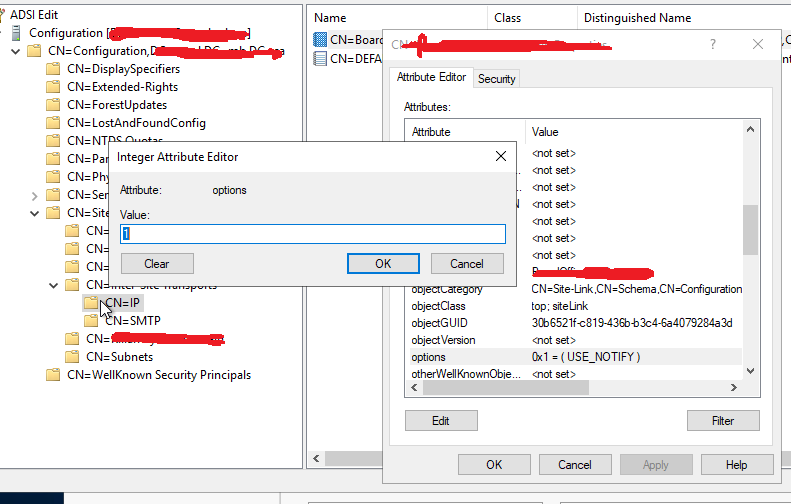
How to Speed up Domain Controllers Replication Interval
July
23
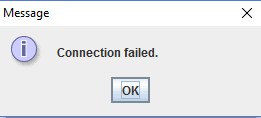
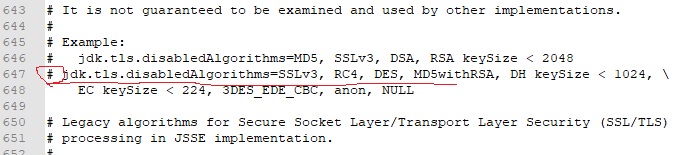
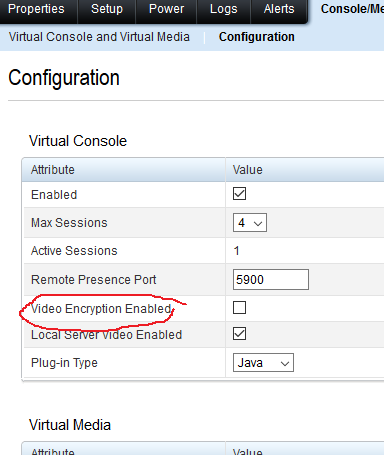
Dell iDrac 6 Connection Failed FIX
July
4
How to Configure PDC to synchronize time with external NTP server
1) Stop the W32Time service: C:>net stop w32time
2) Configure the external time sources, type: C:> w32tm /config /syncfromflags:manual /manualpeerlist:”0.pool.ntp.org, 1.pool.ntp.org, 2.pool.ntp.org”
3) Make your PDC a reliable time source for the clients. Type: C:>w32tm /config /reliable:yes
4) Start the w32time service: C:>net start w32time
type w32tm /resync (this will force a sync to the new servers)
finally, check if the server is using the new ntp server.
w32tm /query /source
Display time source
June
13
How to Activate Windows Using KMS Server
May
16
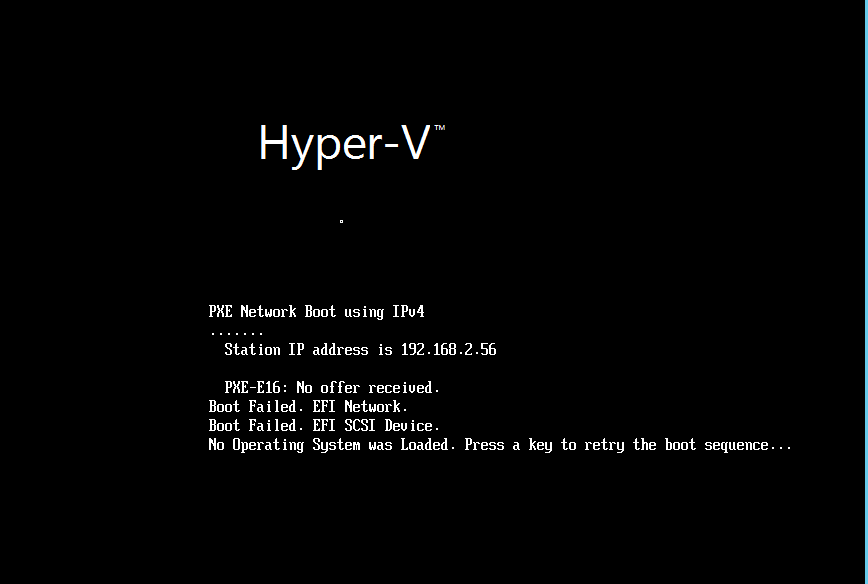
Hyper-V Gen 2 Network Card Failed to Boot from WDS server: PXE-E16: No offer received
May
15