August
8
August
8
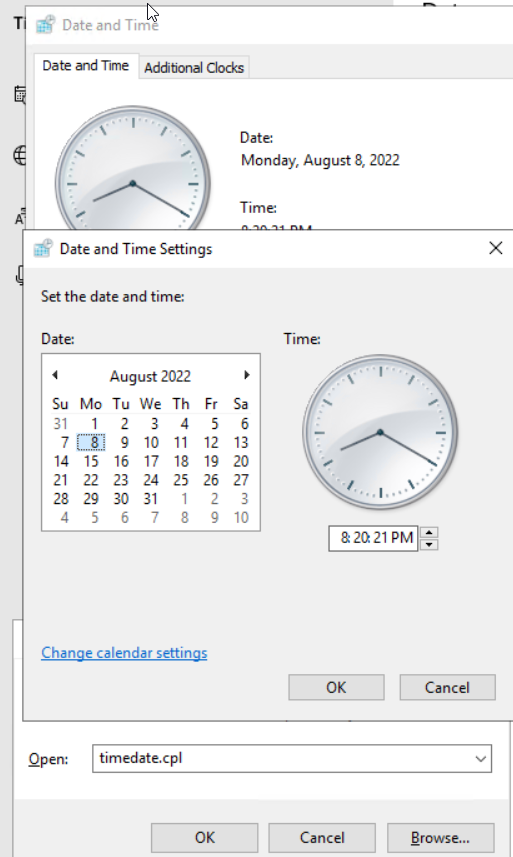
How to extend Windows Server 2022/2019/2016 trial period
August
4
How to set an Office365 user Password to never expire with PowerShell
1 Connect to Microsoft online
Connect-MsolService (enter your username and password if prompted)
2 Check Individual User Password Expiration status Get-MSOLUser -UserPrincipalName exampleuser@example.com | Select PasswordNeverExpires

3 Set Individual User Password to Never Expire
Set-MsolUser -UserPrincipalName exampleuser@example.com -PasswordNeverExpires $true

August
3
How to list all mailboxes that an Exchange online user has access?
Connect to Exchange Online PowerShell
Run powershell with elevated privileges
1. Connect-ExchangeOnline

2. List all mailboxes to which a user has Send As permissions:
PS C:\> Get-Mailbox | Get-RecipientPermission -Trustee Katy

3. List all mailboxes to which a particular user has Full Access permissions:
PS C:\> Get-Mailbox | Get-MailboxPermission -User Katy

4. List all mailboxes to which a particular security principal has Send on behalf of permissions:
PS C:\> Get-Mailbox | ? {$_.GrantSendOnBehalfTo -match “katy”}
June
28
How to Find Windows Last Boot Time

June
24
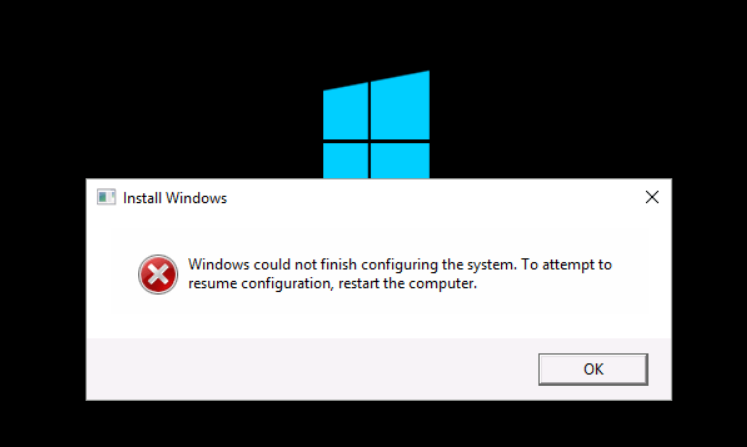
WDS server, Sysprep Error: Windows Could Not Finish Configuring the System
June
24
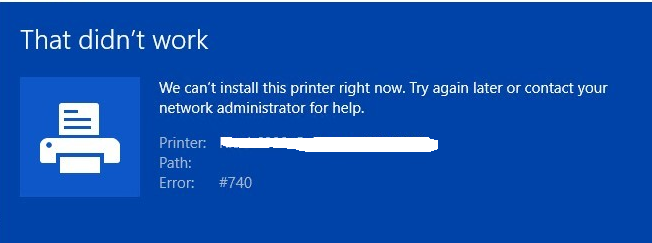
We Can’t Install This Printer Right Now #740
February
15
How to configure SonicWall to use WAN X1 interface with a VLAN ID or Tag?
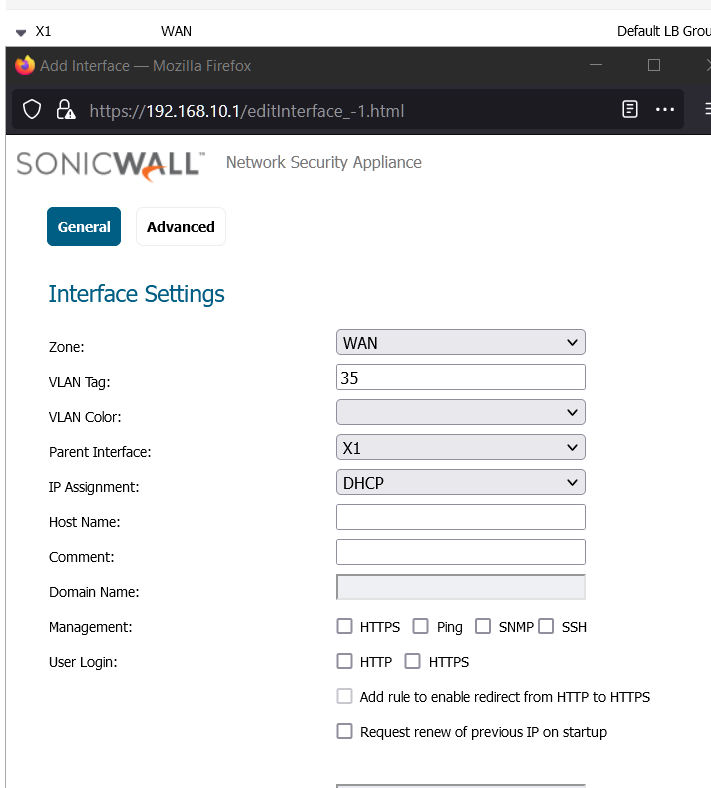
1 Assign a Virtual Interface on WAN X1 port and put the VLAN Tag number. In this example, we use 35 and IP assignment uses DHCP.

2 Go to “Failover & Load Balancing ” and Click configure
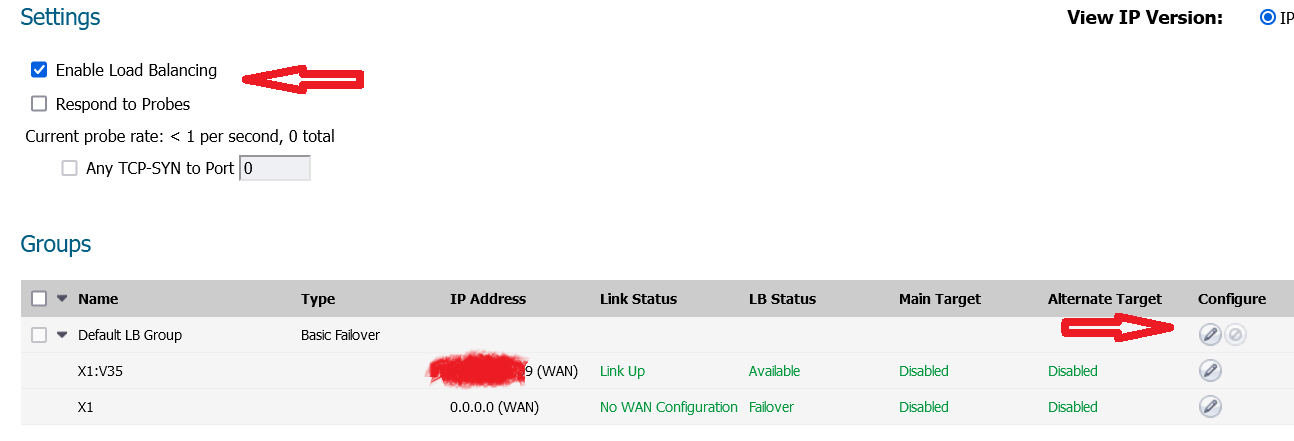
3 Click the arrow button and move X1:V35 to the top and click OK.
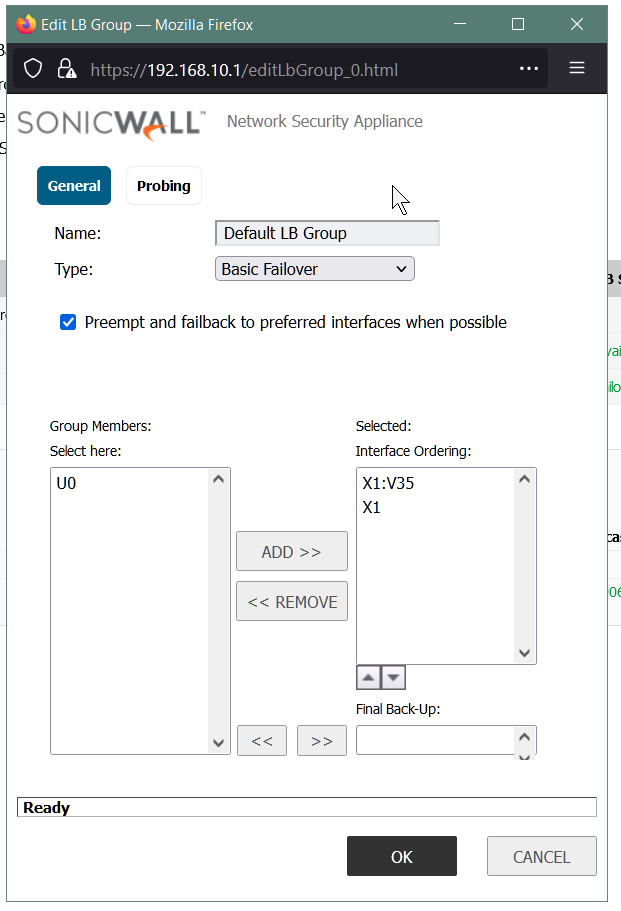
Now, SonicWall is going to use X1:V35 as the main port to connect WAN.
In my test, I have found out that if I leave the “enable load balancing”(Failover & Load Balancing) unchecked, it works too.
February
12
How to fix WordPress Admin Dashboard Not Display Correctly
The problem:
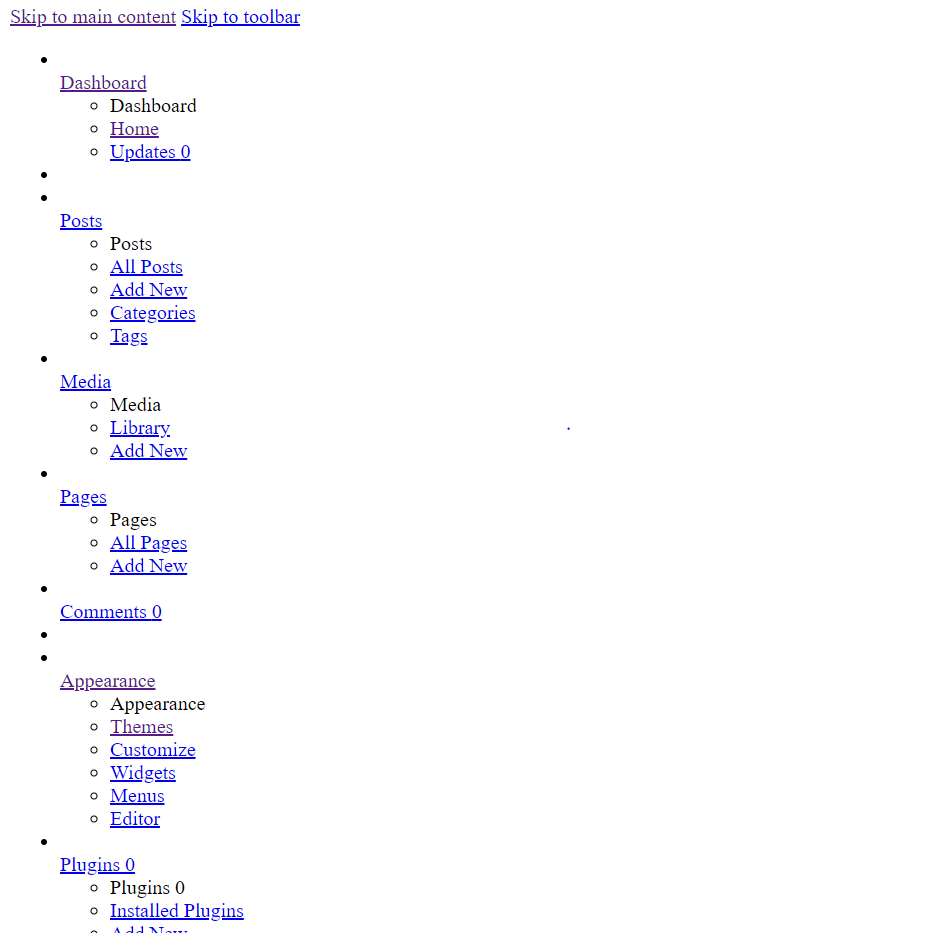
This problem might be caused by some faulty or outdated plugin .js that overrides something else when it is concatenated.
Open and edit the wp-config.php file (located on the root folder of the installation ). Make a backup of wp-config.php first.
add this define('CONCATENATE_SCRIPTS', false);
right before the line of: /* That's all, stop editing! Happy blogging. */
This will tell WordPress to load each script on it’s own instead of combining them.
February
11
How to move Hyper-V guests from a crashed server to a new Hyper-V server?
If the original Hyper-V host computer was crashed, the best way should be restore the latest backup of Hyper-V.
However, if you don’t have a backup for the Hyper-V, here are the steps:
Scenario 1. No snapshots with the VM on the crashed Hyper-V computer
1 Create a new VM on the rebuilt Hyper-V server
2 Mount the existing VHDX to the VM.
Scenario 2. There are snapshots with VM on the crashed Hyper-V computer
1 Merge the snapshots into the original VHDX first.
2 Repeat the steps in Scenario 1.